Tips for Navigating Finance Learning Resources

Written by Maria Fister.
Finance Division learning resources use the same template across all areas to promote consistency and make them easier to navigate, regardless of the subject matter. We use a consistent layout across all Finance guides so you can quickly find the answers you need without relearning how to navigate them.
The core content is divided into chapters, and each chapter has various headings (heading 2, heading 3, etc.). This structure serves many purposes:
- Indicates document hierarchy
- Aids in searchability and improves accessibility
- Reduces cognitive load by “chunking” content
Navigating the Document
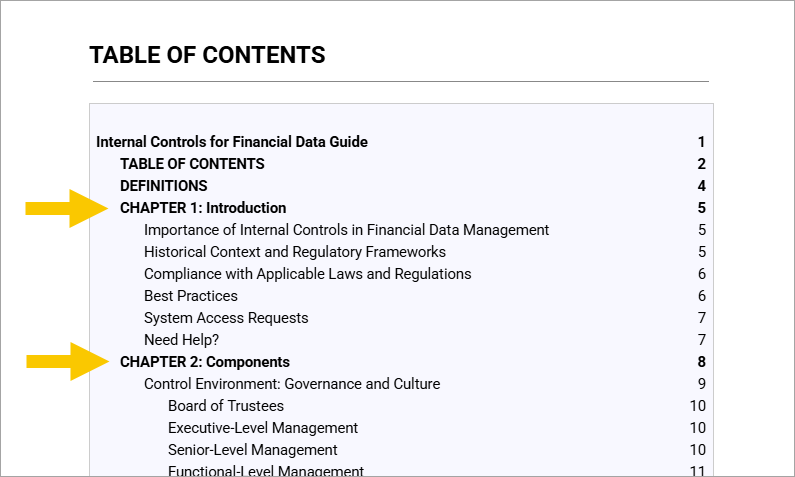
Use the Table of Contents: The document includes a linked Table of Contents immediately after the cover page. You can select any chapter or section title (e.g., “CHAPTER 1: Introduction”) to jump directly to that part of the document.
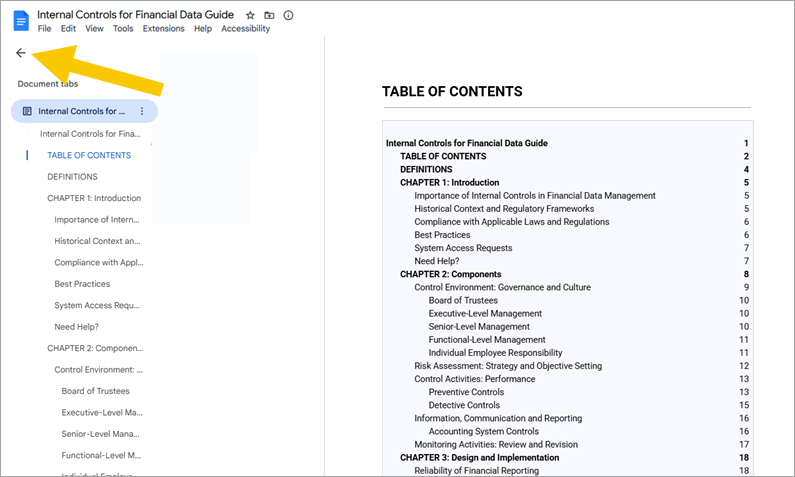
Use the Document Outline: Look for the Document Outline icon (often a small list or arrow symbol) on the top left of your screen. Clicking this opens a sidebar menu that lets you hop between chapters instantly.
Searching for Keywords
To find specific terms like “COSO,” “Fraud,” or “Timeliness”, use the following keyboard shortcut:
- For Windows operating systems: Press Ctrl + F
- For Mac operating systems: Press Cmd + F
A small search box will appear in the top right. Type your keyword, and use the Prev / Next arrows to cycle through every mention of that word in the guide.

Copying Links to Specific Sections
If you need to share a specific section (e.g., Safeguarding University Property) with a colleague:
- Scroll to the heading you want to share.
- Right-click on the heading text.
- Select “Copy heading link”.
- You can now paste this link in an email or chat. When clicked, it will take the user directly to that section in the guide.

Copying Sections of Our Guides
Can’t highlight or copy text? Select the “accessible version of this guide” link on the cover page to open a copy-friendly format.

- Categories:


